.svg)


%201.svg)
.avif)
Key Takeaways
- Staging environments prevent production disasters by providing identical copies of live sites where updates, changes, and new features can be tested thoroughly before deployment
- Staging workflows include creating staging copies, testing changes comprehensively, obtaining stakeholder approval, and deploying validated changes to production through controlled processes
- Staging tools range from hosting provider built-in staging (simplest for beginners), WordPress staging plugins (flexible for various hosting), to manual staging setups (maximum control for advanced users)
- Essential testing on staging includes plugin/theme updates, design changes, functionality modifications, content updates, and performance validation ensuring changes work correctly before going live
- Regular staging synchronisation from production maintains accuracy, with best practices including weekly or monthly production-to-staging syncs and selective database content for realistic testing
A Sydney accounting firm updated WooCommerce and several payment plugins directly on their production e-commerce site during business hours. The updates created checkout conflicts. Customers couldn't complete purchases. The site crashed. Recovery took 6 hours during which the business lost approximately $18,000 in revenue and sent 200+ frustrated customers to competitors.
Investigation revealed the updates worked fine—individually. Together, they conflicted. Simple staging environment testing would have identified the conflict immediately. Instead, testing happened on production, customers suffered, and the business paid dearly for the lesson.
Another Brisbane agency deployed major design changes to a client's production site based on static mockups. The changes looked beautiful on desktop but broke mobile navigation. The site received 70% mobile traffic. Mobile users couldn't navigate or convert. The error went unnoticed for three days because the team tested only on desktop. Staging environment with mobile testing would have caught this before a single real visitor experienced the problem.
According to research from Hosting Tribunal, 88% of online consumers are less likely to return to a website after a bad experience, making production errors extremely costly beyond immediate revenue impact through long-term customer loss.
.avif)
Understanding Staging Environment Benefits and Use Cases
Staging environments provide safe testing grounds preventing production disasters while enabling confident deployment of changes and improvements.
Risk elimination prevents production disasters by testing updates and changes on staging before production deployment, identifying conflicts before customers encounter them, catching bugs in controlled environment instead of live sites, and verifying mobile compatibility before affecting users. Staging transforms risky deployments into validated procedures.
Confidence in changes enables aggressive improvement knowing changes are tested. Teams can experiment boldly on staging, knowing failures impact only test environment, approve changes based on actual testing rather than assumptions, obtain stakeholder sign-off on working implementations, and deploy with certainty that changes work correctly.
Update safety particularly matters for WordPress core, plugin, and theme updates. Update compatibility conflicts represent common WordPress issues—staging identifies these before production impact. Test major WordPress updates, plugin updates affecting critical functionality, theme updates potentially changing designs, and security patches requiring immediate deployment but needing validation.
Development workflow enables proper development processes separating development, staging, and production environments. Developers build features on local development or staging, stakeholders review on staging before production approval, changes deploy to production only after staging validation, and production remains stable customer-facing environment.
Training and experimentation provides safe environment for learning. Team members learn WordPress administration without production consequences, test unfamiliar plugins before committing to production use, experiment with configurations understanding failures are consequence-free, and practice procedures like site migrations or restorations.
Client demonstrations showcase work-in-progress for approval. Agencies show clients proposed changes on staging, obtain approvals before production deployment, gather feedback that informs refinements, and avoid disappointing clients with unexpected production surprises.
Performance testing validates changes don't degrade speed. Measure staging performance before and after changes, identify performance regressions before production deployment, optimise staging until performance acceptable, and deploy knowing changes maintain speed standards.
Content preparation allows creating and refining content before publication. Draft major content updates on staging, refine layouts and formatting, obtain approvals from stakeholders, then publish to production when finalised avoiding half-finished production content.
.avif)
Staging Environment Setup Methods and Tools
Several approaches create staging environments, from simple hosting provider features to complex manual configurations, with appropriate method depending on technical capability and hosting environment.
Managed WordPress hosting staging provides simplest setup through built-in features. WP Engine, Kinsta, Flywheel, and other managed hosts include one-click staging creation, automatic production-to-staging synchronisation, easy staging-to-production deployment, and staging URL access for testing. Managed hosting staging requires zero technical setup—click button, staging environment creates automatically. Ideal for non-technical users prioritising simplicity.
cPanel staging available on many shared and VPS hosts provides staging through hosting control panels. cPanel's WordPress Toolkit includes staging environment creation, though implementations vary by hosting provider. Some hosts provide excellent staging features; others offer basic functionality requiring manual configuration. Check hosting provider documentation determining available staging capabilities.
WordPress staging plugins create staging on any hosting supporting WordPress. WP Staging creates staging environments through cloning production into subdirectories, works on shared hosting without special requirements, provides push/pull database and file synchronisation, and offers free version with premium upgrades. Alternative staging plugins include Duplicator Pro, BlogVault, and All-in-One WP Migration offering varying staging capabilities and workflows.
Local development environments like Local by Flywheel or XAMPP provide staging on developer computers. Local environments offer complete isolation from production, unlimited testing without hosting costs, faster performance than remote staging, and offline accessibility. However, local environments require synchronisation procedures keeping local, staging, and production aligned and may not perfectly replicate production server configurations.
Manual staging setup provides maximum control through creating subdomain or subdirectory for staging, duplicating production WordPress files to staging location, duplicating production database with updated URLs, and configuring staging WordPress installation. Manual setup requires technical competence but offers flexibility unavailable in automated solutions.
Git-based workflows for advanced development teams use version control managing changes. Develop features in branches, merge to staging branch for staging testing, merge to production branch after approval, and deploy production branch to live sites. Git workflows provide sophisticated change management but require developer expertise and git infrastructure.
Docker containers create isolated staging through containerisation technology. Containers replicate production environments precisely, enable rapid staging environment creation and destruction, and support complex multi-environment workflows. However, Docker requires substantial technical expertise limiting use to development teams.
Staging-as-a-service platforms like Pantheon or Platform.sh provide hosted development workflows. These platforms include integrated staging, version control, and deployment pipelines serving enterprise and agency needs. Higher costs than simple hosting but sophisticated workflow automation and performance optimisation.
Complete Staging Workflow: Creation to Deployment
Effective staging requires systematic workflows ensuring changes test properly before production deployment while maintaining staging environment accuracy.
Step 1: Create staging environment using chosen method. Managed hosting: click staging creation button in hosting dashboard. Plugins: install WP Staging or similar, run cloning process creating staging copy. Manual: create subdomain, duplicate files and database, configure WordPress. Initial creation takes 5-30 minutes depending on site size and method. Verify staging accessible and functioning before proceeding.
Step 2: Synchronise production to staging ensuring staging matches current production. Most staging solutions include synchronisation features pulling latest production data. Schedule regular synchronisation (weekly or before major changes) maintaining staging accuracy. Fresh staging copies prevent testing against outdated environments producing misleading results.
Step 3: Implement changes on staging including plugin updates, theme modifications, content changes, new feature additions, or design refinements. Make all intended changes on staging exactly as planned for production. Staging changes should replicate production deployment exactly—testing different changes than ultimately deploying undermines staging value.
Step 4: Test comprehensively validating changes work correctly. Test updated functionality thoroughly, verify mobile responsiveness, check cross-browser compatibility, validate forms submit properly, confirm checkout processes complete, test user account functions, measure page load performance, and review all changed content. Comprehensive testing identifies issues requiring fixes.
Step 5: Fix identified issues addressing problems found during testing. Debug errors on staging until resolved, refine implementations based on testing discoveries, optimise performance issues, and adjust designs based on testing feedback. Iterate through changes and testing until staging performs perfectly.
Step 6: Obtain stakeholder approval demonstrating staging to decision-makers. Show clients, managers, or team members proposed changes on staging, gather feedback and approval, make requested adjustments on staging, and obtain final sign-off before production deployment. Approval process prevents deploying changes stakeholders haven't endorsed.
Step 7: Deploy to production transferring validated changes from staging to production. Methods include automated push from staging tools, manual file uploads for changed files, database migration for content changes, or Git deployments from staging branch. Deployment timing should consider traffic patterns—deploy during low-traffic periods minimising impact of unexpected issues.
Step 8: Verify production deployment confirming changes deployed correctly. Immediately test production after deployment, verify critical functionality works, check that changes appear as expected, monitor for errors or issues, and keep staging available briefly as rollback option if production problems emerge. Post-deployment verification catches issues early.
Step 9: Monitor post-deployment watching for problems missed in testing. Monitor error logs for PHP errors or warnings, track analytics for traffic or conversion changes, review user feedback or support requests, and check performance metrics. Post-deployment monitoring identifies edge cases testing missed.
.avif)
Essential Staging Environment Testing Procedures
Systematic testing on staging environments identifies issues before production deployment, with comprehensive procedures preventing most production disasters.
Plugin and theme update testing prevents compatibility disasters. Update plugins on staging one at a time measuring impact, test site functionality after each update, identify plugin conflicts through systematic testing, update themes verifying design integrity, and test combinations of multiple updates ensuring compatibility. Update testing represents most common staging use case.
Design and layout testing validates visual changes across devices. Test on desktop browsers (Chrome, Firefox, Safari, Edge), verify mobile phone display (iPhone, Android), check tablet layouts, validate responsive breakpoints transition smoothly, test with browser zoom at 150-200%, and review with screen readers for accessibility. Visual testing catches display issues affecting user experience.
Functionality testing confirms features work correctly. Submit test forms verifying delivery, complete test purchases through checkout, test user registration and login, verify search functionality, check navigation links, test filtering and sorting, and validate embedded media loads. Functionality testing identifies broken features before users encounter them.
Performance testing ensures changes don't degrade speed. Measure page load times before changes (baseline), implement changes and remeasure performance, identify performance regressions from changes, optimise until performance acceptable or better, and validate Core Web Vitals remain satisfactory. Performance testing prevents speed degradation from updates or changes.
Content testing validates new content displays correctly. Review layouts with actual content length, verify images display properly and compressed, check formatting appears as intended, test interactive elements work, and validate metadata and SEO elements. Content testing particularly important for major content additions or redesigns.
Database query testing identifies performance issues. Use Query Monitor plugin showing database queries, identify slow queries exceeding 1 second, check total query count per page, optimise problematic queries, and verify changes don't increase database overhead. Query testing prevents database performance problems.
Security testing ensures changes don't introduce vulnerabilities. Scan staging with security plugins (Wordfence, Sucuri), check for known plugin vulnerabilities, verify login security works correctly, test admin access restrictions, and validate security headers and SSL configuration. Security testing catches vulnerabilities before production exposure.
Cross-browser testing validates compatibility across browsers. Test on Chrome (most common browser), Firefox (alternative rendering engine), Safari (especially for iOS users), and Edge (Chromium-based but distinct). Browser differences sometimes create unexpected issues staging testing identifies.
Staging Environment Maintenance and Best Practices
Maintaining staging effectiveness requires regular synchronisation, security measures, and disciplined workflows preventing staging environments from becoming outdated or unreliable.
Regular production synchronisation keeps staging current. Synchronise production to staging weekly for active sites, monthly for stable sites, before major changes (fresh starting point), and after significant production content updates. Outdated staging produces misleading test results—regular synchronisation maintains accuracy.
Selective synchronisation balances freshness with practical testing needs. Sync entire database and files for comprehensive updates, sync database only when testing content/configuration, sync files only when testing code changes, or use partial database syncs preserving staging-specific test data. Selective synchronisation maintains efficiency while ensuring relevant data is current.
Search engine blocking prevents staging indexation. Add robots.txt blocking all search engines, use noindex meta tags on all staging pages, implement HTTP authentication requiring passwords, or use hosting-level password protection. Duplicate content in search engines from staging sites creates SEO problems—blocking is essential.
Security hardening protects staging from unauthorised access. Use strong passwords different from production, implement two-factor authentication if available, restrict staging access by IP address if possible, monitor staging for intrusion attempts, and never use production payment credentials on staging. Compromised staging can enable production attacks—secure appropriately.
Staging URL consistency prevents confusion and workflow issues. Use consistent subdomain pattern (staging.example.com), keep staging URLs stable across synchronisations, document staging access for team members, and avoid changing staging locations frequently. Consistent URLs simplify workflows and team access.
Resource monitoring prevents staging from consuming excessive hosting resources. Monitor staging disk space usage, track database size growth, identify resource-intensive staging processes, and clean unnecessary staging files periodically. Staging shouldn't strain hosting resources needed for production.
Team access management provides appropriate staging permissions. Grant all team members staging access (low risk environment), document staging credentials securely, revoke access for departed team members, and consider separate staging authentication from production. Liberal staging access enables team testing without production risk.
Change documentation tracks what's tested on staging. Document changes made on staging, track deployment status (tested, approved, deployed), note issues discovered and resolutions, and maintain deployment logs showing staging-to-production history. Documentation creates institutional knowledge and troubleshooting reference.
Staging retirement removes outdated environments. Delete staging environments not used for 90+ days, archive staging data if needed for records, clean abandoned test content and accounts, and recreate fresh staging when needed. Abandoned staging environments waste resources and create security risks.
.avif)
Frequently Asked Questions
Do Australian small businesses really need staging environments or are they only necessary for large enterprise websites with complex development workflows?
Small businesses benefit enormously from staging despite common misconception that staging serves only enterprises. Simple staging prevents costly production disasters affecting small businesses disproportionately hard—enterprise sites recover from downtime faster than small businesses losing critical revenue during outages. Managed WordPress hosting providers (WP Engine, Kinsta, Flywheel) include one-click staging even on basic plans specifically because all WordPress sites benefit from safe testing. Minimum staging use case tests plugin and theme updates before production application—this alone justifies staging since update conflicts represent most common WordPress disasters.
How much does staging environment setup cost for Australian WordPress sites and what's the most cost-effective approach for budget-conscious businesses?
Staging costs range from free to modest monthly fees depending on approach. Managed WordPress hosting ($25-$100+ monthly) includes staging built-in with no additional cost. WordPress staging plugins like WP Staging offer free versions with premium versions ($99-$199 yearly) adding advanced features—free versions suffice for many businesses. Manual staging on existing shared hosting costs nothing beyond time investment but requires technical capability. Most cost-effective approach uses managed hosting already providing staging or free WP Staging plugin on existing hosting.
What's the difference between staging environments and backups, and do sites need both or can staging replace regular backup procedures?
Staging and backups serve different purposes requiring both for comprehensive site protection. Staging provides testing environment for changes before production deployment, prevents disasters through testing, enables experimentation, and facilitates development workflows. Backups provide disaster recovery from catastrophic failures, enable restoration after hacks or corruption, protect against data loss, and serve compliance requirements. Staging doesn't replace backups because staging represents current/future state while backups preserve historical states, staging can become corrupted or misconfigured requiring backup restoration, and staging won't help if production disaster requires recovery to previous point-in-time.
How frequently should Australian businesses synchronise their production sites to staging environments to maintain accuracy without excessive overhead?
Synchronisation frequency depends on production change rate and staging usage patterns. Active sites with daily content updates benefit from weekly production-to-staging synchronisation maintaining fresh testing environments. Stable sites with infrequent changes suffice with monthly synchronisation. Synchronise before major changes regardless of schedule ensuring testing against current production state. Best practice syncs database and files together maintaining complete accuracy, though selective synchronisation (database only, files only) works for targeted testing.
Can changes made on staging environments be automatically deployed to production or should deployment always be manual for safety?
Deployment approaches balance automation efficiency against manual control safety. Fully automated deployments (staging changes automatically push to production on schedule or approval) suit mature development teams with comprehensive testing, version control, and rollback procedures. Semi-automated deployments (automated tools but manual triggering) balance efficiency and control—tools push changes but humans initiate deployment. Fully manual deployments (manually transferring changes from staging to production) provide maximum control and safety for teams learning staging workflows or making complex changes.
What should Australian businesses do if they discover problems on production that didn't appear during staging testing?
Production issues missed during staging require immediate response and process improvement. Immediate response includes reverting to previous production state if possible, implementing quick fixes if revert unavailable, monitoring impact and user complaints, and documenting issue for post-mortem analysis. Process improvements include identifying why staging missed issue, expanding testing procedures catching similar issues, improving staging environment accuracy matching production, enhancing monitoring detecting production issues faster, and refining deployment procedures reducing deployment risks.
How do Australian businesses handle staging for multiple websites or client sites without maintaining dozens of separate staging environments?
Multi-site staging strategies balance testing needs against resource constraints. Agencies might maintain staging for active client projects only, create temporary staging for specific testing needs, use single staging environment serially for multiple sites (test Site A, deploy, recreate staging for Site B), or maintain staging only for complex high-risk sites while simpler sites use backup-and-test approach. WordPress multisite installations can create single staging multisite environment testing all subsites together.
What staging environment practices prevent common mistakes like accidentally deploying staging content to production or production content to staging?
Staging discipline prevents deployment errors through systematic procedures. Visual differentiation includes distinct staging URLs impossible to confuse with production, staging admin bar colours or notices identifying environment, and browser bookmarks clearly labelled. Deployment checklists verify target environment before deployment, confirm changes intended for deployment, check that synchronisation direction is correct, and obtain deployment approval. Access controls separate staging and production credentials preventing accidental cross-environment actions.
Staging Environments Enable Confident WordPress Management
Staging environments transform WordPress site management from risky production deployments to confident, tested procedures that prevent disasters, enable experimentation, and facilitate professional development workflows.
Australian businesses implementing staging protect revenue through preventing production disasters, enable aggressive improvement knowing changes are tested, facilitate team collaboration through safe experimentation, and demonstrate professionalism through disciplined deployment practices.
The modest investment in staging setup—whether managed hosting features, staging plugins, or manual configuration—delivers enormous ROI through prevented disasters and enabled improvements that staging makes possible without production risk.
Ready to implement staging environments for safe WordPress testing and deployment? Maven Marketing Co. provides comprehensive WordPress development services including staging environment setup, deployment workflows, and best practice implementation ensuring Australian businesses can test safely and deploy confidently. Let's protect your production environment through proper staging procedures.

Table of contents
read more blogs

Is Google Ads Better Than SEO for My Business
One of the biggest questions business owners ask when they are planning online growth is whether they should invest in Google Ads or SEO. Both are strong marketing plays that help your company show up in Google search results, but they do things in separate lanes. Google Ads gives quicker visibility and can bring in leads fast, whereas SEO more or less focuses on slow, steady organic traffic that tends to grow the longer you keep building it. Picking the right direction depends on what you want to achieve, how much money you can spend, how crowded the market is, and how quickly you need results, like sooner rather than later. The good news is you don’t always have to choose one or the other; it’s not exactly a black-and-white situation. If you take time to understand the strongest points of both, you can put together a more sensible digital marketing plan that supports consistent expansion. In this guide, we’ll compare Google Ads vs SEO, explain the main differences, and help you figure out what option makes the most sense for your business.

When Should I Hire a Digital Marketing Agency
Growing a business today takes more than just having a website or throwing a post on social media; customers usually search around online, compare providers, skim reviews, and basically expect the brand to show up with a solid digital presence before they even think about buying. Many businesses try to run their marketing themselves, but there comes a point when “doing it all in-house” becomes clunky and hard to manage, all at once. Knowing when to hire a digital marketing agency can end up making a big, real difference for your growth. If you’re not getting enough leads, or your online visibility feels stuck, or sales are just not moving, the right agency can bring the know-how, plus a clear plan, to help you get noticeably better outcomes. In this guide, we’ll dig into what a digital marketing agency actually does, the usual signs it’s time to bring one on, and how picking the right marketing partner can help your business move forward at a faster pace.
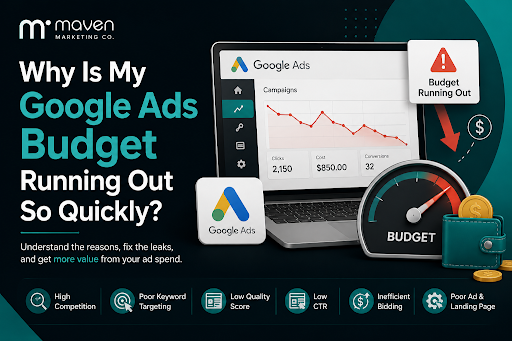
Why Is My Google Ads Budget Running Out So Quickly
Running a successful Google Ads budget isn’t only about throwing more money at it. It’s more like making every dollar, doing a bit extra. A lot of businesses start a Google Ads campaign with big hopes, then find out their daily budget is gone within a few hours, and that feels weird, right? After that, your ads stop showing effectively, new leads slip away, and your return on investment dips. So if your Google Ads budget is running out too fast, don’t stress. It’s a fairly common issue, and in most situations, it can be repaired with the right approach. There are multiple little things that can drain your advertising money quicker than you expected, from costly keywords to audience targeting that just doesn’t quite fit. In this guide, we’ll walk through why your budget disappears so quickly, how to cut wasteful spend, and the most reliable ways to boost your Google Ads ROI, even if your budget stays the same.